Posted: Thu Jul 24, 2008 9:08 am Post subject: adjustments not sticking - please advise
I scanned an image on a scanner, and it came out as a pdf, converted to tiff for processing, and usually, the tif image is ok to work with, but for some reason, I cannot work with any of the tif images that were created. I have also tried png and jpg and they also cannot process.
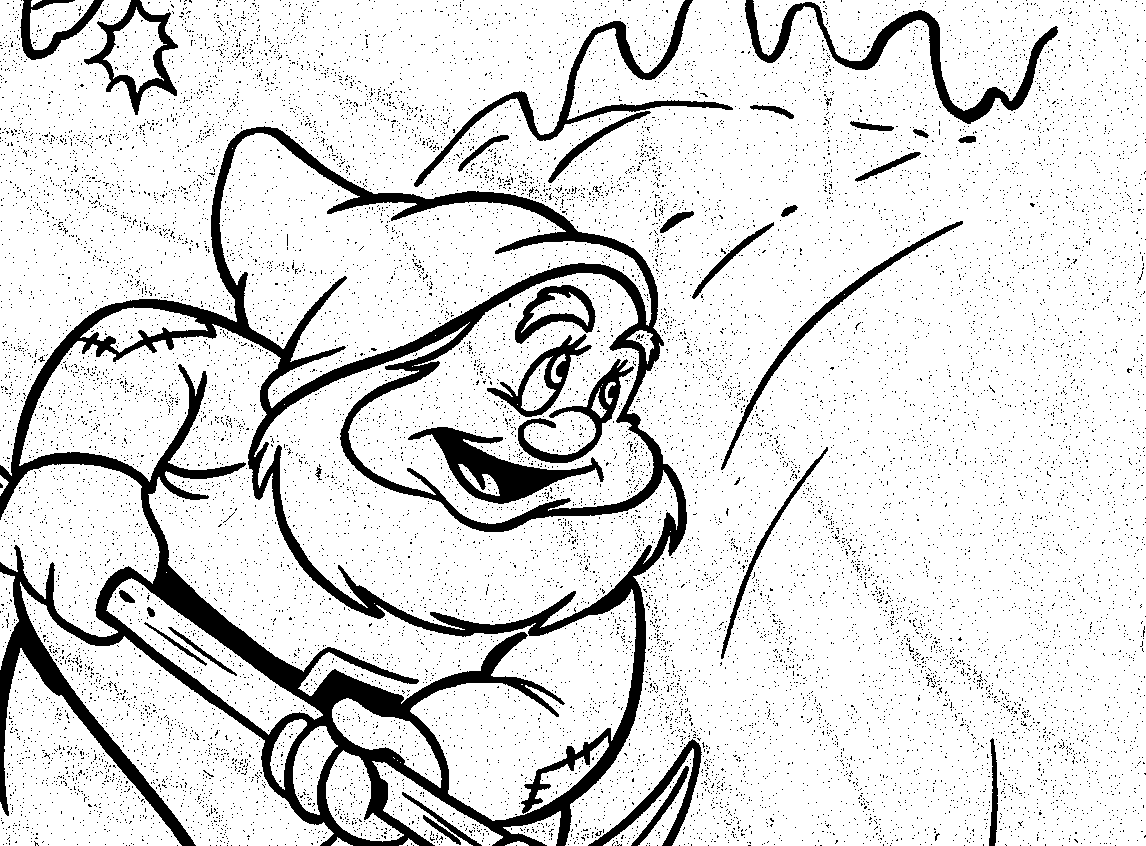
what i am doing is scanning a B+W lineart with lots of background due to thin paper (passing through when scanning) so to fix that after scanning, the image is processed through a batch program in adobe photoshop, and what the batch program does, is brighten by +65 and contrast +65. I manually tried it first, and it didn't work. I also tried the image in Elements, and it would not brighten/contrast. please advise if the image is bad or something? I have a sample attached.
BW A___Page_01.png
Description:
a clip of the thing, won't let me brighten/contrast. even tried levels, and other adjustments.. change color profiles, etc.. no go.. please help.
after checking my options for a few hours, finally realized that the reason it was not working anymore was because my initial scan was in B+W mode. Originally I scan them in Grayscale mode. Probably because it was in B+W mode, it droped all the grays so that explained why it didn't work. When converting from the PDF output that the scanner sends at then to tif format, it re-converted it to grayscale, but since it lost all the quality prior, it went bad.. it was just odd that when you would lighten/contrast the original tiff image, it would lighten and adjust in preview, but when you pressed ok, nothing happened.. probably a glitch or something.. oh well. thanks all.
Joined: 24 Sep 2007
Posts: 3515
Location: Haverhill, UK PS Version: Lightroom 5, CS4 & Elements 11 OS: Windows 8.1
Posted: Thu Jul 24, 2008 2:09 pm Post subject:
Hey yanger,
Thanks for posting the solution, this is quite a common problem when scanning low (or no) colour images. _________________ Matt
3photoshop.com
http://www.3photoshop.com
You cannot post new topics in this forum You cannot reply to topics in this forum You cannot edit your posts in this forum You cannot delete your posts in this forum You cannot vote in polls in this forum You cannot attach files in this forum You can download files in this forum