Posted: Sat Feb 26, 2005 9:37 am Post subject: Light Rays?
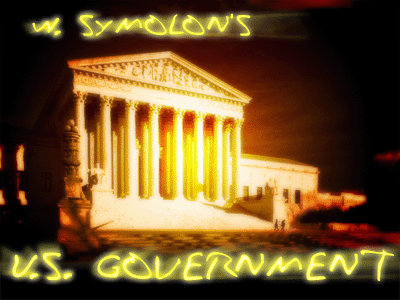
I'm not sure what it's called, but it looks like rays of light that eminate from around the edges of objects and text. I'm sure it can be done with an airbrush, but there's probably also a way to guarantee straghter lines, more contour to text and curves, and just plain looking better. I wish I had an example image, and I'm sure they're all over the place, but the only thing I can think of at the moment is the text at the end of the M. Night Shyamalan's The Village trailer...
wouldn't ya know it, after a while of googling and playing around, I came up with a technique that sort of works... Although it could use a little fine tuning to look like individual rays, it works for now.
Here's the process I used:
Assume you have, for simplicity's sake, just a background layer (say, black) and a text layer. Place your favorite effects on your text layer, and duplicate the layer.
On the bottom text layer, use Filter > Blur > Radial Blur. Set the settings to 100%, Zoom, and Best. Diddle with the center placement to change the direction of the rays, and click OK.
And it's as simple as that. You can create different effects on the rays by applying different gradients, textures, and other effects to the source (bottom) text layer. For really defined rays instead of just a glow, try (i'm telling you to, cause I haven't yet ) putting an angle gradient of alternating black and white (or black and transparent) on your source text before you make the blur.
Here's my almost final product. I was trying to duplicate the look (if you didn't catch it from my first post) of some effects from the trailer or DVD of The Village.
You cannot post new topics in this forum You cannot reply to topics in this forum You cannot edit your posts in this forum You cannot delete your posts in this forum You cannot vote in polls in this forum You cannot attach files in this forum You can download files in this forum






 ) putting an angle gradient of alternating black and white (or black and transparent) on your source text before you make the blur.